

Format a referral URL
To format the referral URL you will need themerchantSlug and your referral code.
To view the merchantSlug field, you can use the getMerchants query. If you know the name of the merchant, include that input argument to refine the response. Add the merchantSlug field into the URL structure below to form the merchant URL:
https://fluz.app/store/{merchant-slug}
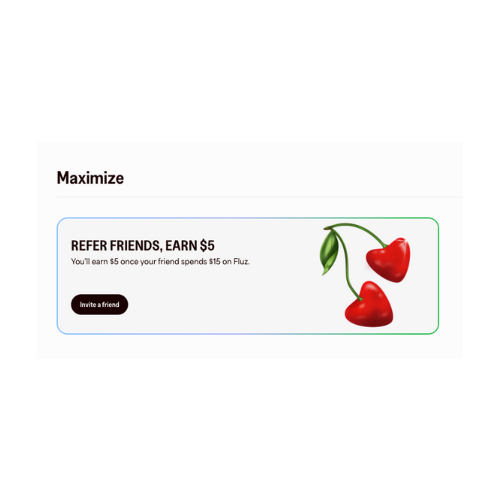
Next, you will need your referral code. You can find your referral code on the homepage in the Fluz web portal under Maximize. Click on Invite a friend to access your referral code.
 Then, under Share your referral code select Copy to save your code.
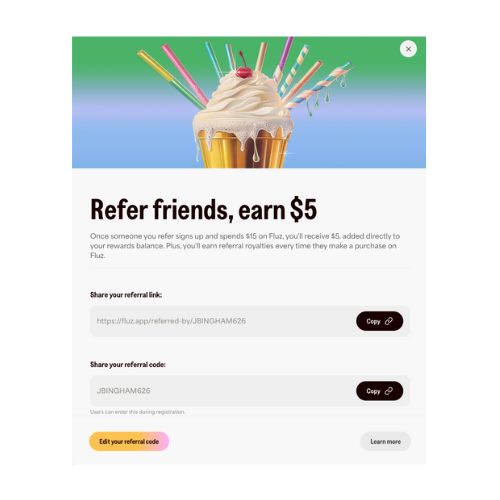 Once you have your referral code, you can add that information to the merchant URL from above to create your referral code URL:
https://fluz.app/store/{merchant-slug}?referred_by={Referral_Code}
Using getReferralUrl
You can also run thegetReferralUrl query to automatically display your referral URL link.
This query takes the MerchantInput as the optional input field. The order of precedence is id -> slug -> name.
MerchantInput is entered or the slug does not exists, it will return the default string:
https://fluz.app/referred-by/{Referral_Code}
Otherwise, the response will be:
https://fluz.app/store/{merchant-slug}?referred_by={Referral_Code}
The full catalog updates twice daily, and stock availability may change. Review Inventory on Stocked Offers to learn how to retrieve stock information.
To learn more about the merchant catalog, visit Catalog Overview.